
ProsperOps Azure customers can leverage the basic Intelligent Showback capabilities and:
- Configure showback reports with the following groupings:
- Subscription
- Service
- Region
- Resource Group
- Tags
- Configure and schedule monthly showback reports
This article outlines how to navigate these Azure specific showback features.
Generate an Ad-Hoc Report
- Navigate to “Generate Showback Report” from the Report History page.

- You’ll be directed to a page to configure your report. You can group by any combination of the following fields:
- Subscription
- Service
- Region
- Resource Group
- Tags
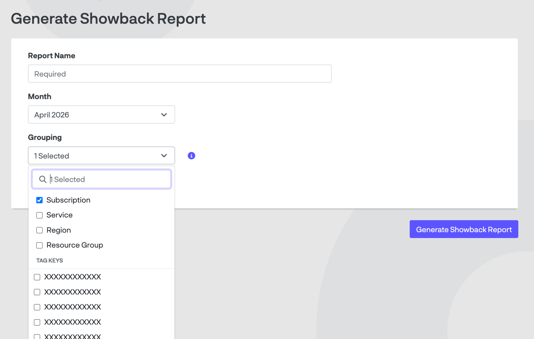
- When you click Generate Showback Report, you’ll be directed back to the Report History page. The report you just configured will be at the top of the list in a “Pending” state.

- The report name will switch to purple when the status is “Available,” and you can click the name to view the report.
Create a Scheduled Report
- Navigate to the Scheduled Reports page and select New Scheduled Report.
- You’ll be directed to a page to configure your report name and grouping. The report will always run at the beginning of a new month on the previous month’s data, so you do not configure the date. You can group by any combination of the following fields:
- Subscription
- Service
- Region
- Resource Group
- Tags
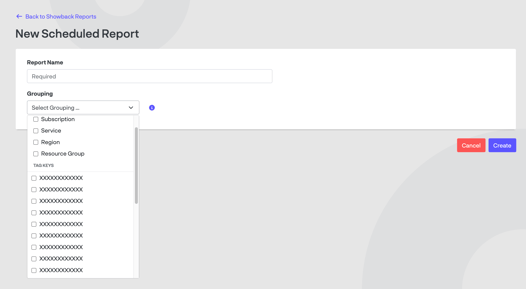
- Once you click Create, you are redirected to the Scheduled Reports page and your new configuration is added to the list.
Run an Ad-Hoc Version of a Scheduled Report
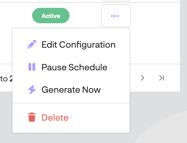
- Navigate to the ellipses in the row of the report you’d like to generate.
- You can name the report and select your desired month of data. The grouping configuration is prepopulated.
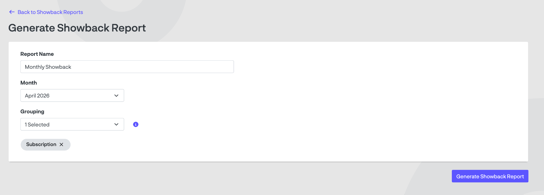
- Once you click Generate Showback Report, this report will generate and populate in the report history like any other on-demand report.
Manage Scheduled Reports
You can manage your scheduled reports by selecting the ellipses on a report’s row on the Scheduled Reports page.
- Edit Configuration takes you to the screen to edit the name and grouping for a report.
- Pause Schedule will prevent the report from generating on the monthly cadence. If a report is paused, you can navigate to the ellipses to resume generating the report.
- Delete lets you delete the configuration and scheduled report. Note, this will not delete any reports that have run using this configuration.
FAQs
Can I run a report on partial month data?
Showback reports are only run on complete months of data to ensure the data is finalized.
Can I run a report on multiple months of data?
We only provide a single month’s worth of data at this time.